Get Started with RicordamiApp
Set up automatic WhatsApp reminders in under 10 minutes. This guide walks you through every step, from connecting your calendar to sending your first reminder.
What you'll do
Pick how to add appointments
Set up your messages
Add phone numbers
Send a test reminder
You're live
Pick how to add your appointments
Three ways to load appointments. Choose the one that fits your workflow.
Option A: Connect Google Calendar
Here's what to do:
- 1 Click "Connect My Calendar" from your dashboard
- 2 Authorize RicordamiApp to read your Google Calendar
- 3 Select the calendar with your client appointments
RicordamiApp only reads events to send reminders. We never change or delete anything on your calendar.
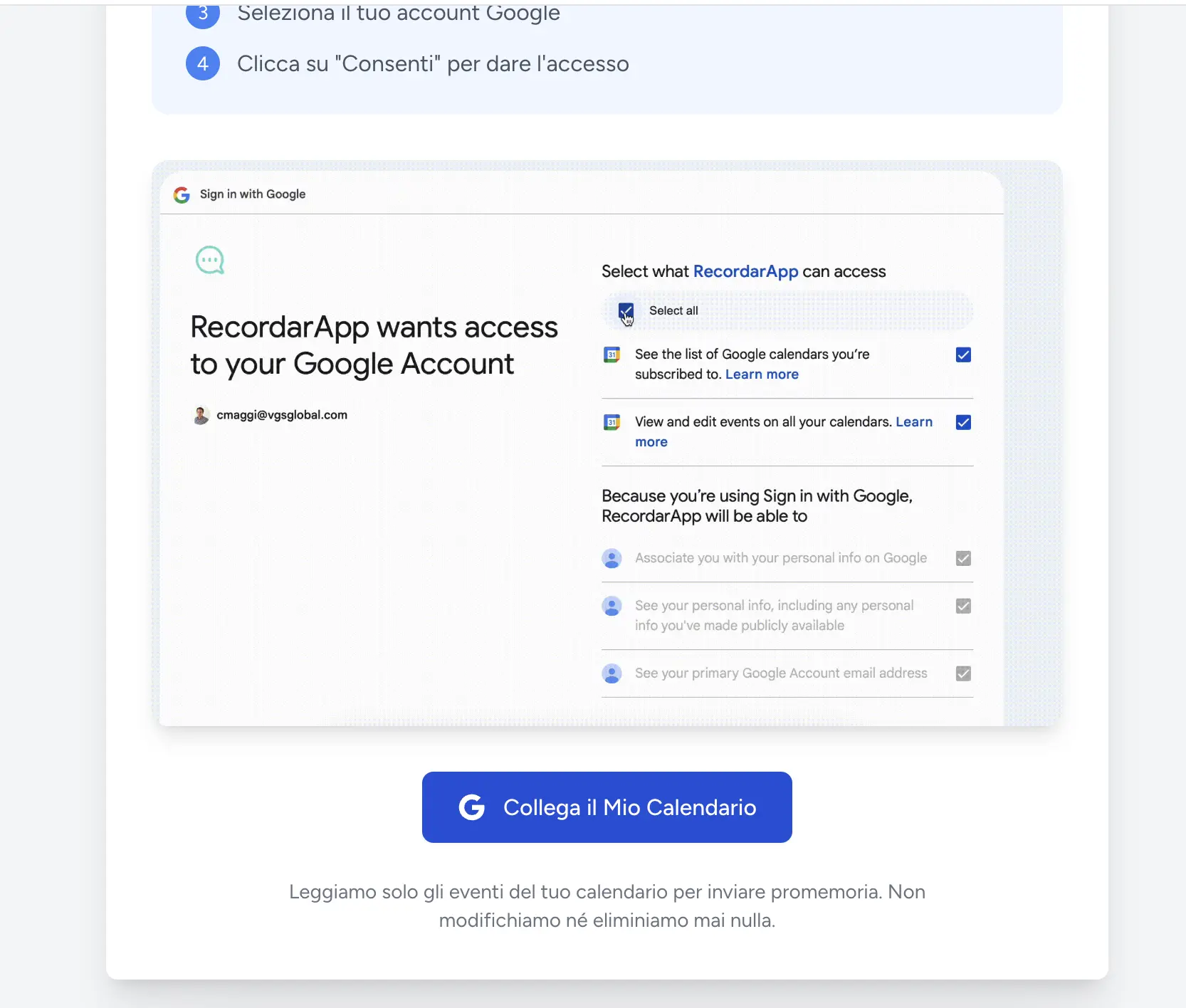
Google Calendar connection screen
Option B: Create appointments in the app
No external calendar needed. Add appointments straight from the RicordamiApp dashboard with the client's name, phone number, date, and time. This is the fastest way to start sending reminders with zero setup.
Businesses that don't use Google Calendar, or anyone who wants everything in one place.
Option C: Import from Excel/CSV (Team and Business Plans)
Already have appointments in a spreadsheet? Upload an Excel or CSV file with client name, phone number, date, and time. RicordamiApp reads the file and schedules every reminder automatically.
Clinics, health centers, or any business with a high volume of appointments already tracked in spreadsheets.
Set Up Your Messages
Choose your reminder style and write your message
Pick your reminder type:
RicordamiApp has two reminder types. Which one to use depends on whether you need clients to confirm.
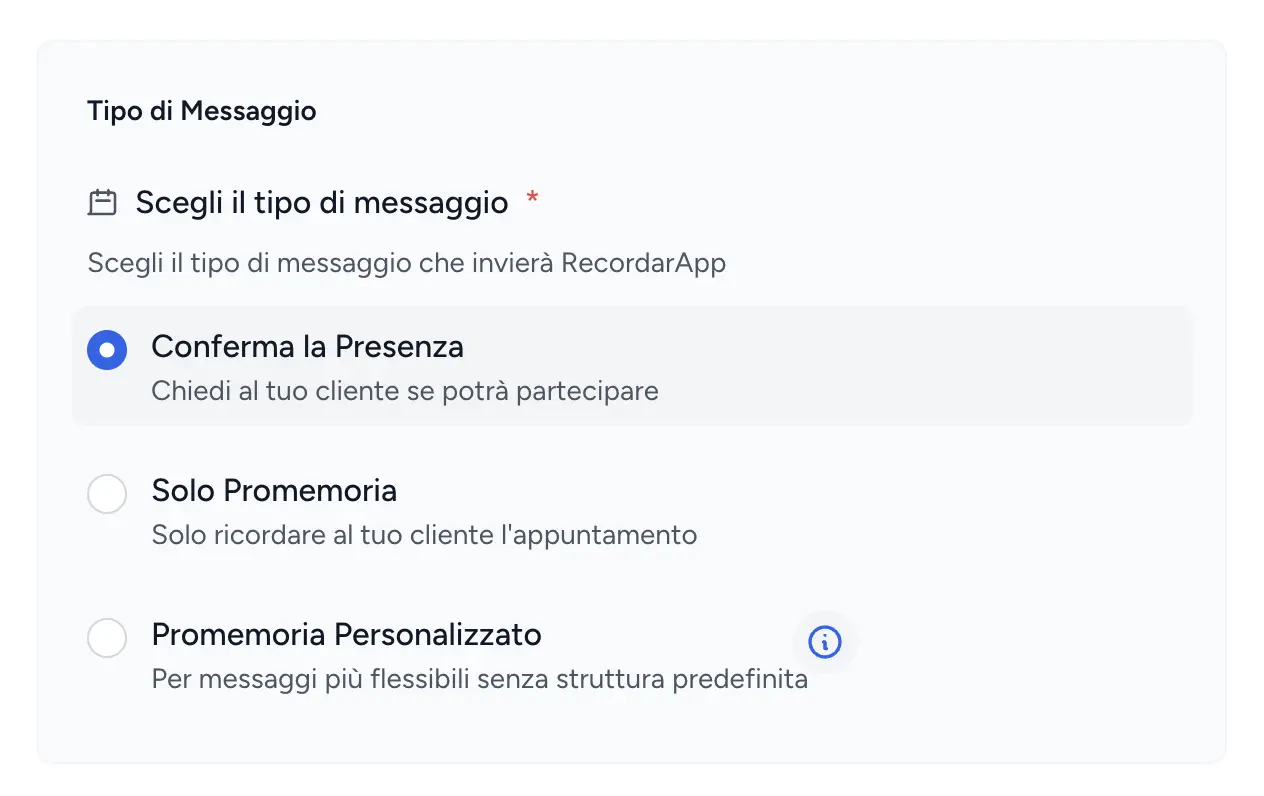
Choosing your reminder type
Simple Reminder
A heads-up with no reply needed. The client sees the date, time, and location, and that's it. Use this when you just want to jog their memory.
- • Routine visits (salon, beauty, barber)
- • Regulars who always show up
- • Quick or low-cost services
- • A casual, friendly tone
Confirmation Request
The client gets "Confirm" and "Cancel" buttons right in WhatsApp. You see their response in your dashboard, so you can fill cancelled slots before they go to waste.
- • Medical or specialist visits
- • Long or high-value services
- • Slots with a waiting list behind them
- • Classes or events with limited spots
Write your message:
Make the message sound like you. Add directions, parking tips, what to bring, or anything else your clients need to know before the appointment.
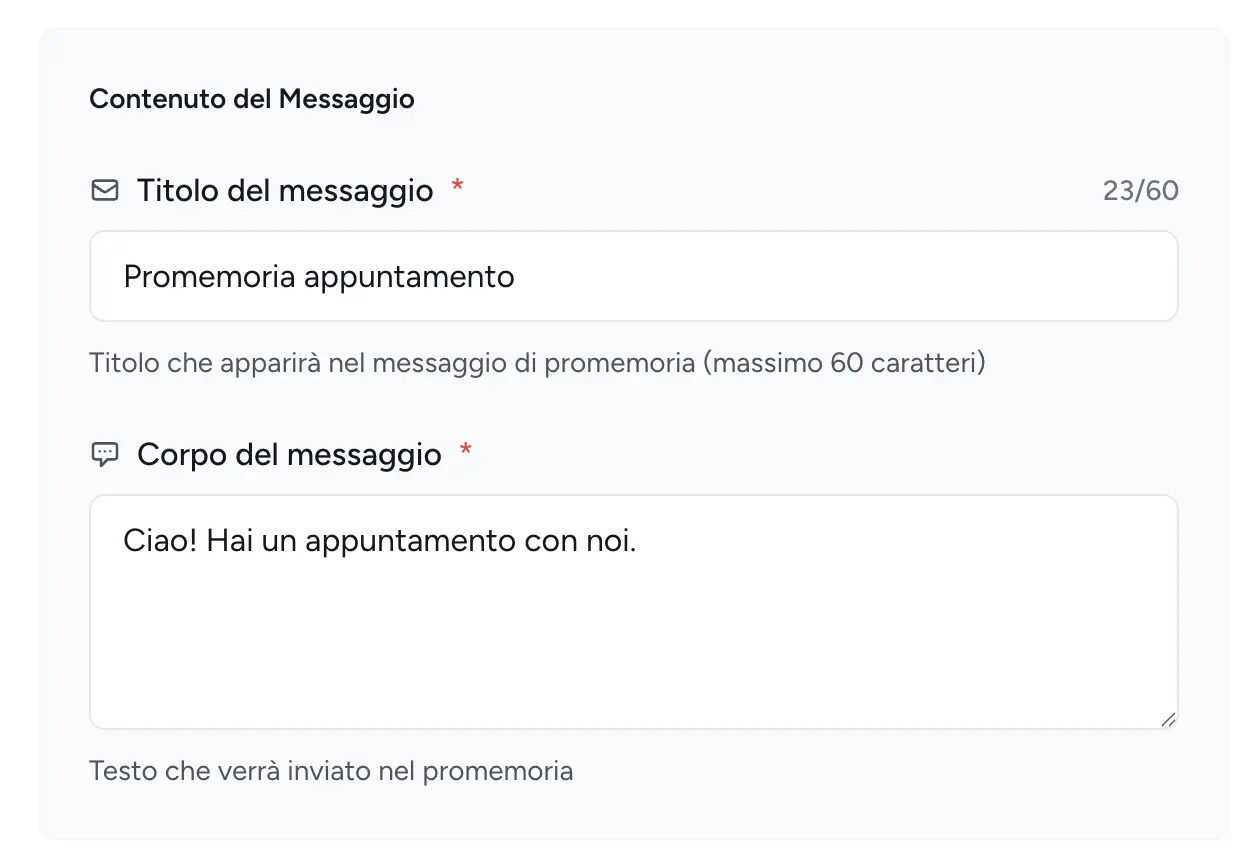
Message editor
Choose when to send:
Pick how far in advance clients get the reminder (e.g. 24 hours before, 1 hour before, or both).
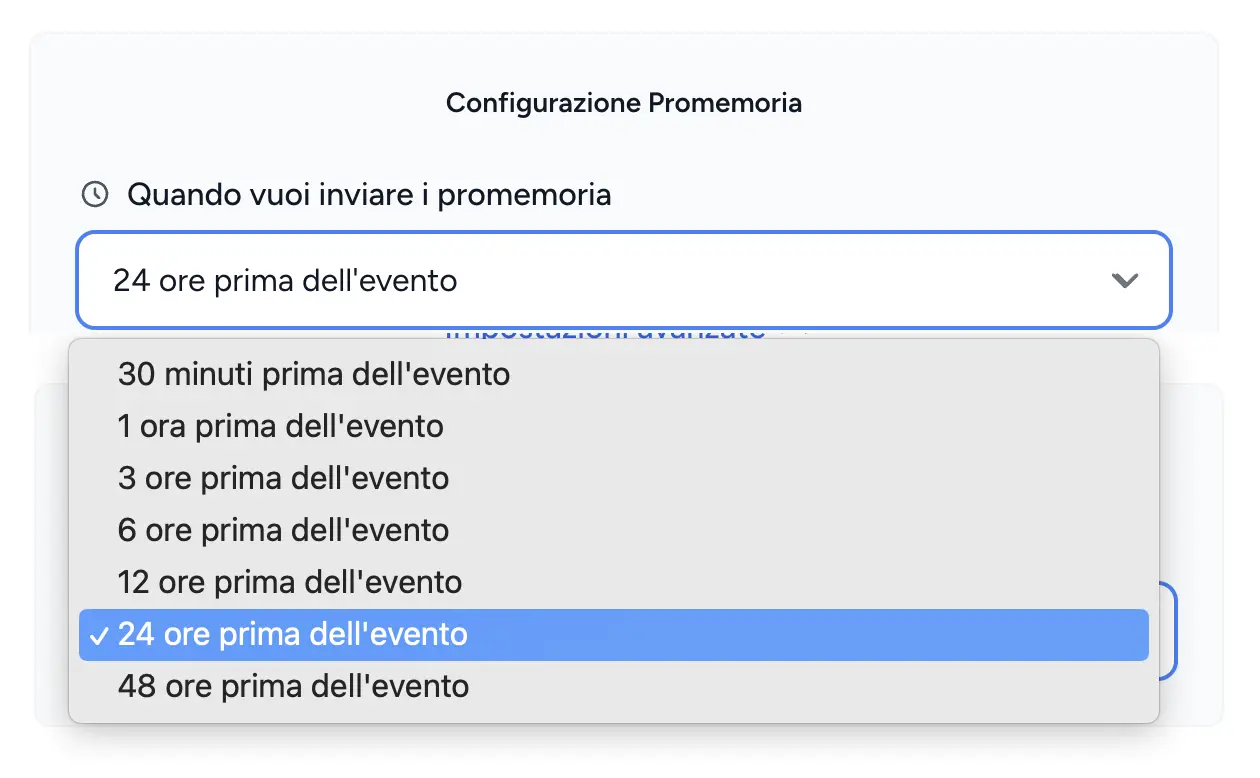
Timing options
Add Phone Numbers to Events
Two ways to tell RicordamiApp who to message
Via RicordamiApp
- • Open the calendar view in RicordamiApp
- • Click on any event
- • Type the client's phone number
- • Click "Save"
1 555 123 4567
555 123 4567
Directly in Google Calendar
- • Open the event in Google Calendar
- • Add the phone number in the description
- • Save the event
- • RicordamiApp syncs it automatically
+1 555 123 4567
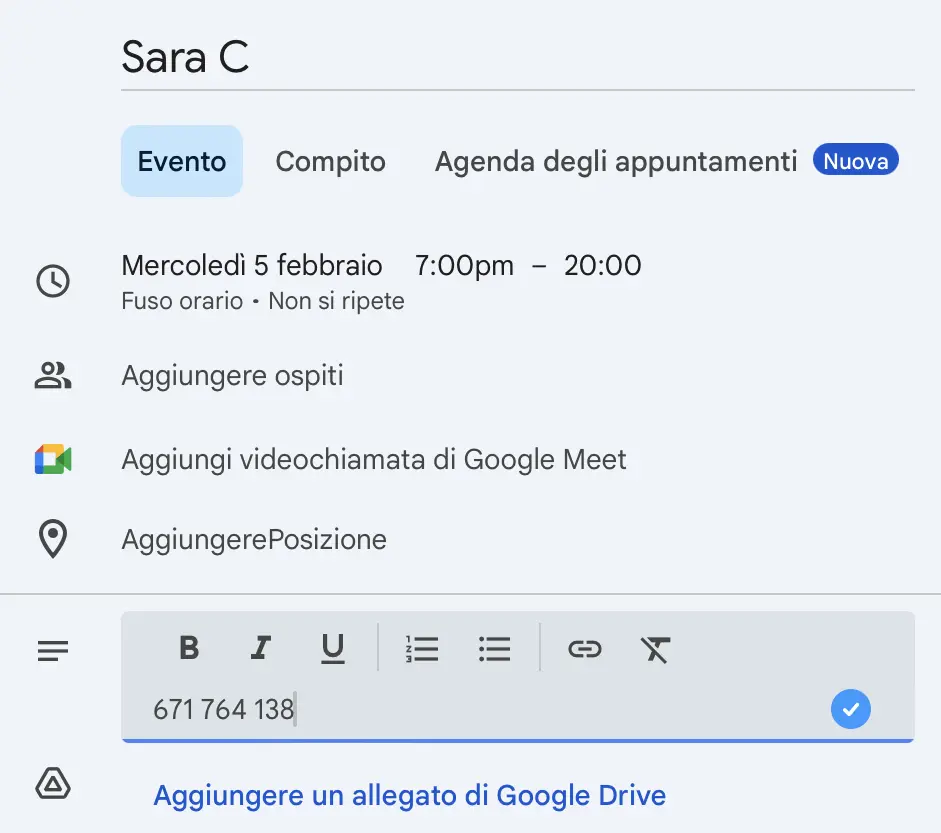
Example: phone number added in the Google Calendar description
Use Method B if you live in Google Calendar. Use Method A if you're managing lots of events at once.
Send a Test Reminder
Make sure everything works before going live
Quick test:
- 1 Create a test event for tomorrow with your own phone number
- 2 Wait a few minutes for it to sync
- 3 Check your dashboard to confirm the event shows up
- 4 You'll get the WhatsApp reminder at the scheduled time
You're all set 🎉
That's it. Every event with a phone number now gets an automatic WhatsApp reminder. Nothing else to do on your end.
Do more with RicordamiApp
Features worth exploring
Once your reminders are running, these features help you get even more out of every appointment.
Follow-up Messages
Send an automatic WhatsApp message after each appointment to ask for feedback, request a Google review, or just say thanks. You choose when it goes out (1 to 48 hours after the appointment) and what it says.
"Hi! How was your visit today? If you enjoyed it, a quick Google review would really help us out ⭐"
Send Filters
Control which events trigger reminders. Include only events with certain words (like "client" or "appointment") and exclude others (like "private" or "holiday"). Especially handy if you mix personal and work events on the same calendar.
Include: "client, appointment, visit"
Exclude: "private, family, course, holiday"
Group Events
Running a class, workshop, or team meeting? Add up to 15 phone numbers (one per line) in the event description, and every participant gets the same reminder automatically.
- • Fitness, yoga, or pilates classes
- • Workshops and training
- • Team meetings
- • Group coaching
Need Help?
Stuck on any step? Drop us a message and we'll walk you through it.
We typically reply in under 2 hours during business hours