How to filter which events send reminders
Use filters to decide exactly when to send automatic reminders
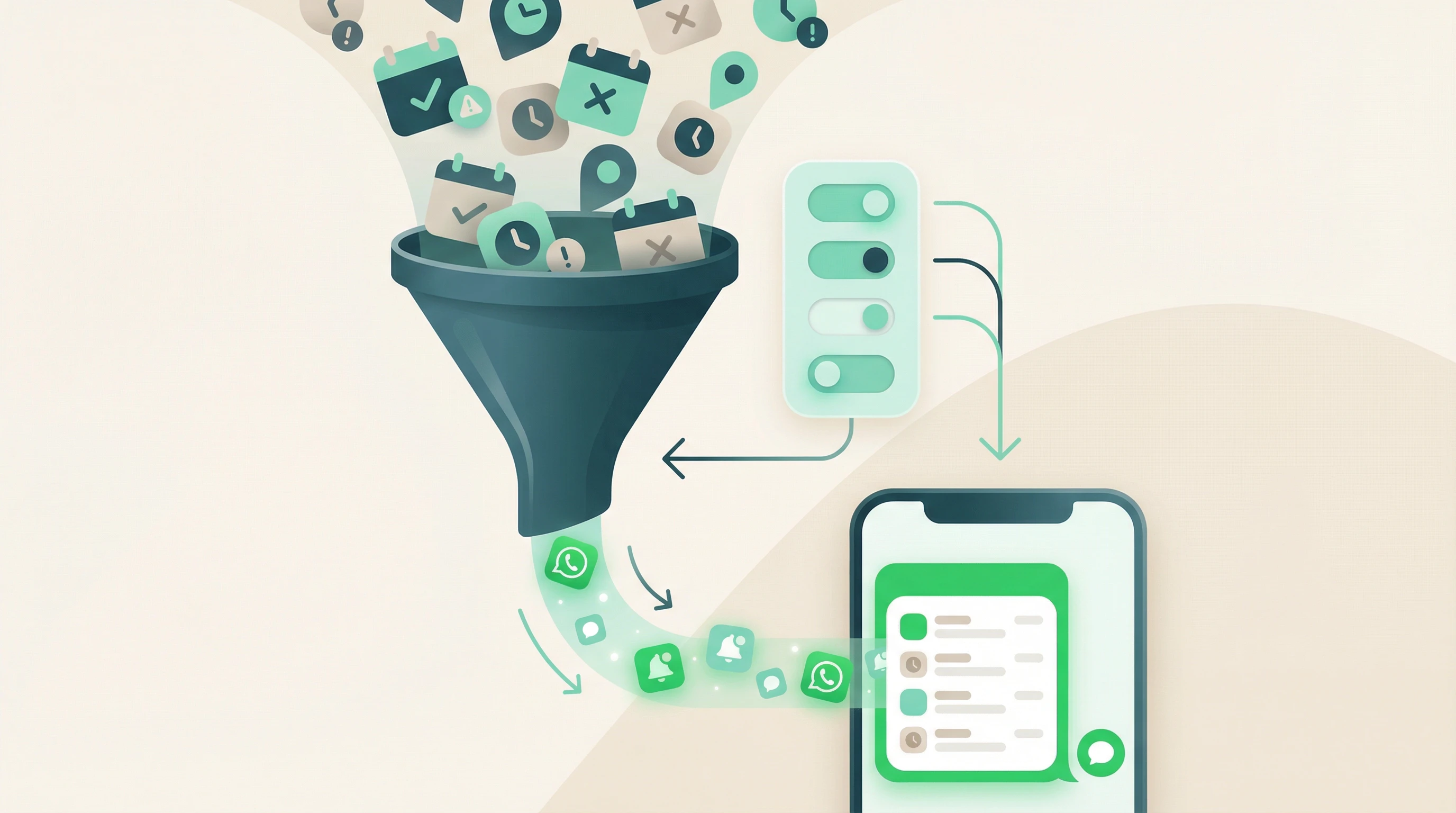
Why use filters?
If you use Google Calendar for both client appointments and personal events, you probably don't want all of them triggering a WhatsApp reminder. Filters let you choose which events generate reminders and which don't.
That way you avoid awkward messages going to the wrong people, and every reminder your clients receive is one that belongs there.
Access the advanced settings
To configure the reminder filters:
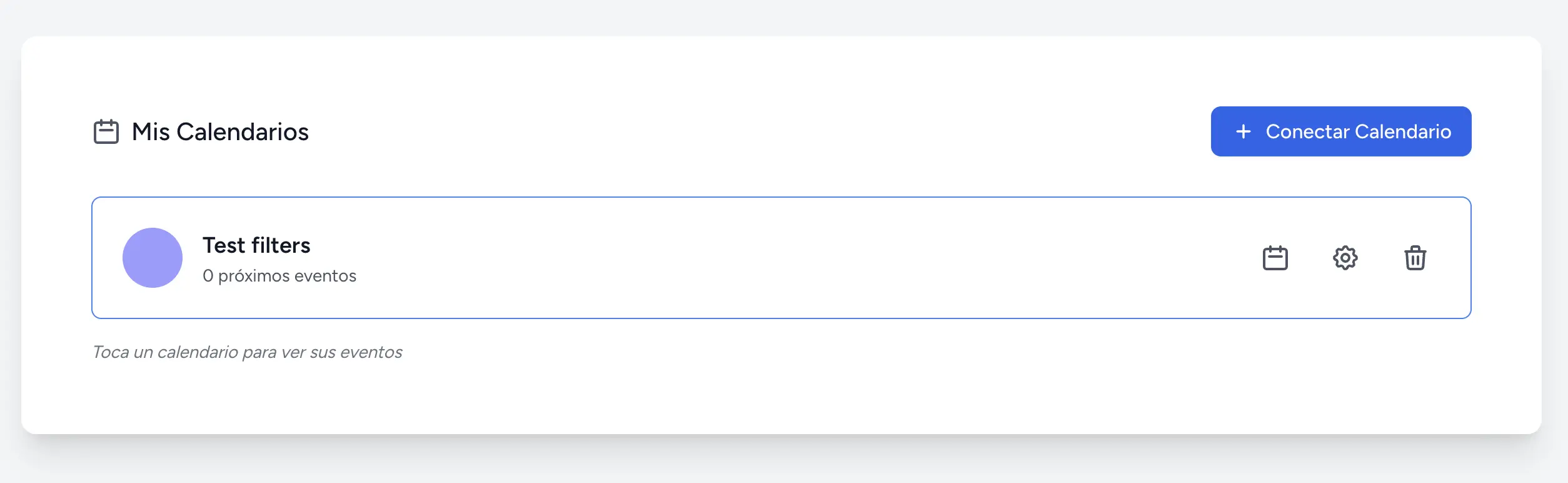
- Go to the "Calendars" section in your dashboard
- Find the calendar you want to configure
- Click "Advanced Settings" or the settings icon
Available filter types
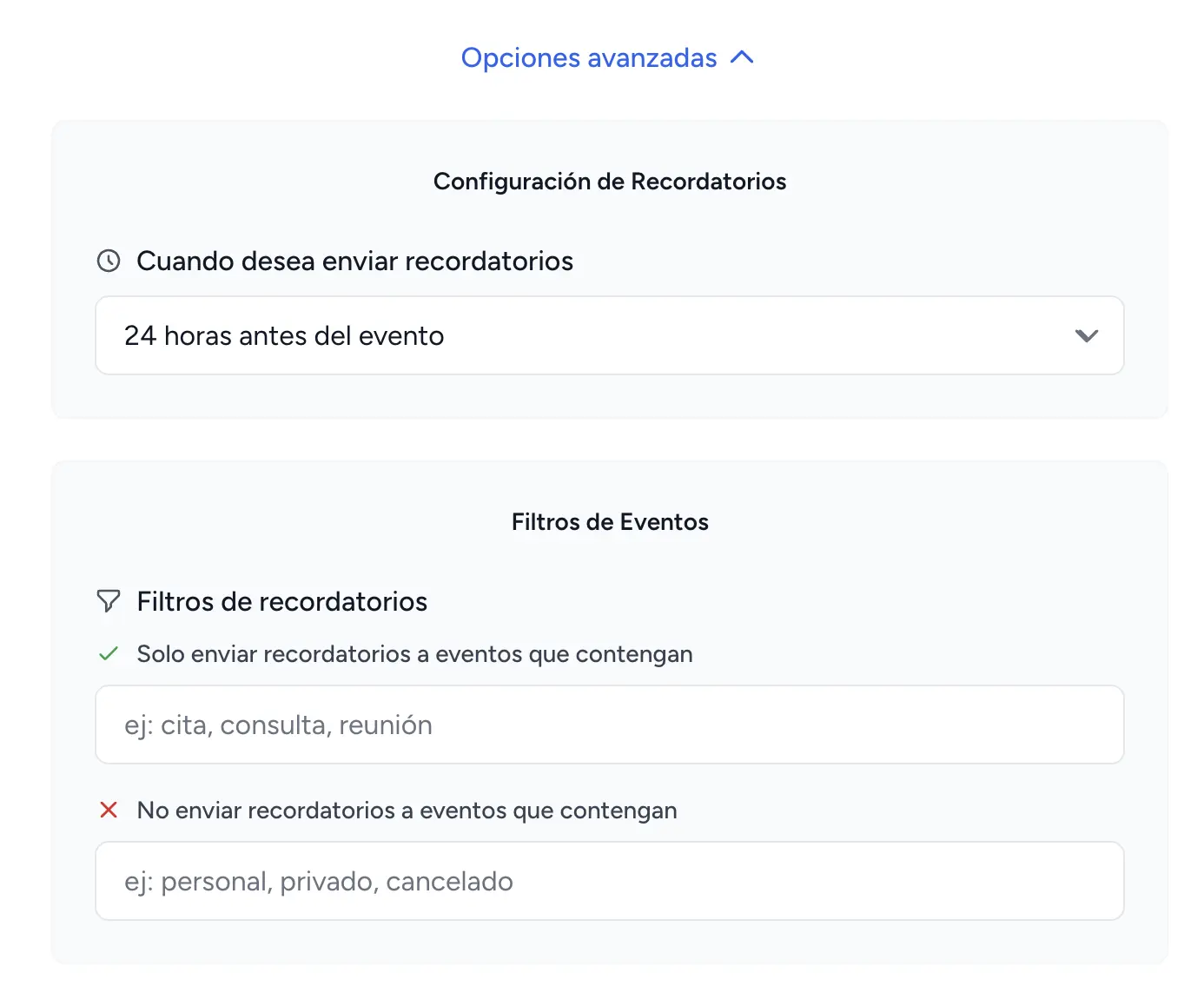
There are two filter types: one to include specific events and one to exclude them. You can use either one alone, or both together.
Include filter
Send reminders only for events that contain these words
Example:
appointment, consultation, meeting
Result:
- ✅ "Appointment with Maria" → Reminder sent
- ✅ "Nutrition consultation" → Reminder sent
- ❌ "Lunch with friends" → No reminder
- ❌ "Mom's birthday" → No reminder
Exclude filter
Don't send reminders for events that contain these words
Example:
personal, private, canceled
Result:
- ❌ "Personal appointment" → No reminder
- ❌ "Private meeting" → No reminder
- ❌ "Canceled appointment" → No reminder
- ✅ "Client consultation" → Reminder sent
Set up the filters
Inside the advanced settings you'll find the "Reminder Filters" section, where you can define both filter types:
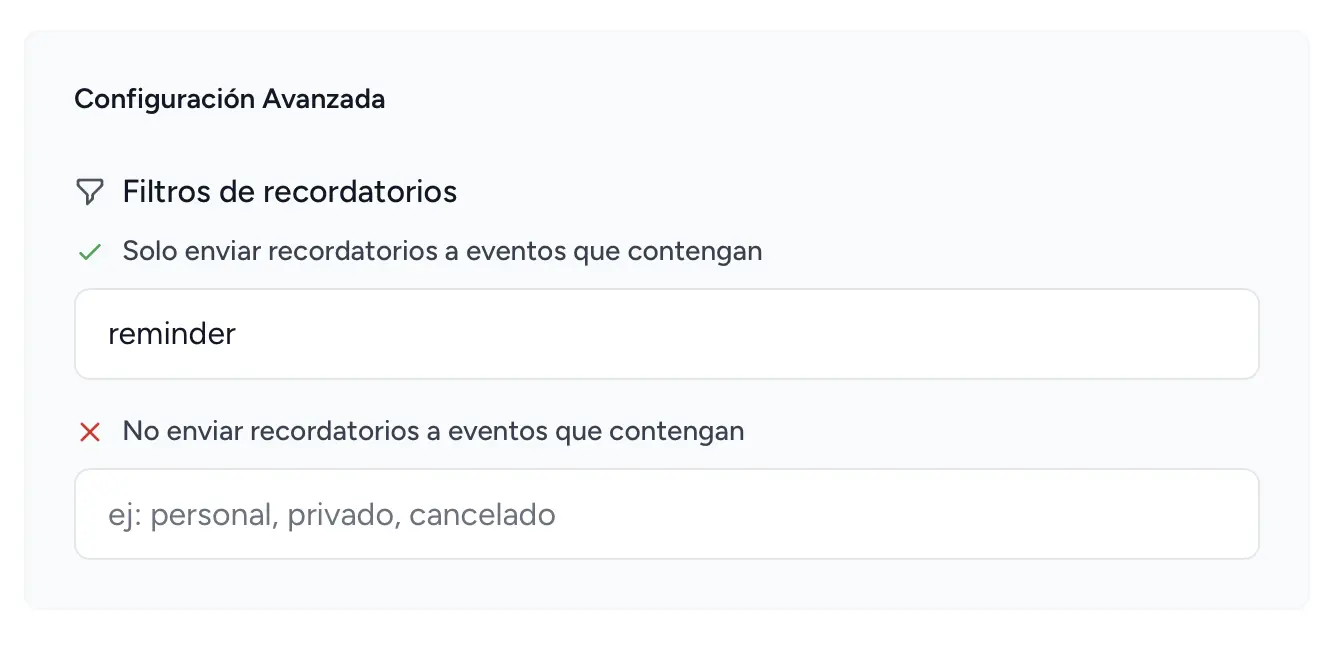
Setting up the include filter
- Enable the option "Send reminders only for events that contain"
- Enter your keywords, separated by commas
- The words can appear in the title or description of the event
- Click "Save" to apply the filter
Keyword examples by industry:
For hair salons:
haircut, color, styling, treatment
For therapists:
therapy, consultation, session, visit
For mechanics:
repair, maintenance, inspection
General:
appointment, client, patient
Setting up the exclude filter
- Enter the words in the "Don't send reminders for events that contain" field
- Separate the words with commas
- These events will be skipped when sending reminders
- Click "Save" to apply the filter
Examples of words to exclude:
personal, private, canceled, vacation, holiday, family, lunch
Tips to get the most out of filters
Recommendations
- Use common, industry-specific words
- Test your filters with a few events before applying them to the whole calendar
- The exclude filter works well for recurring personal events
- Keep keyword lists short and clear
- Always separate keywords with commas
Common mistakes
- Adding too many keywords (5 to 7 is usually enough)
- Using words that are too generic and match everything
- Making include filters so narrow that they block valid events too
- Enabling filters without testing them first
- Including special characters in keywords
When to use each filter
Hair salon or beauty center
Goal: Send reminders only for client services, not for personal events or training sessions
Recommended setup:
Include:
haircut, color, styling, treatment, client
Exclude: personal, course, training
Therapist or psychologist
Goal: Reminders only for patient sessions, not supervision or internal meetings
Recommended setup:
Include:
session, therapy, consultation, patient
Exclude: supervision, meeting, personal
Mixed use (personal + work)
Goal: Same calendar for everything, but reminders only for work events
Recommended setup:
Exclude:
family, personal, lunch, birthday, vacation
Leave the include filter empty so all other events send reminders.
Once you have filters set up, you can also customize the reminder message text your clients receive so it sounds exactly the way you want.