How to set up automatic follow-up messages
Automatic follow-up messages help you stay in touch with clients after every appointment. With RicordamiApp, you can send feedback requests, review prompts, or personalized thank-you messages through WhatsApp — without lifting a finger.
What are follow-up messages?
Follow-up messages are automatic WhatsApp messages sent to clients after their appointment ends. You can use them to:
- 📝 Ask how the experience went
- ⭐ Request a Google or online review
- 🙏 Thank clients for coming in
- 📅 Suggest booking their next appointment
- 💬 Keep the conversation going between visits
How to set up follow-up messages
Step 1: Open advanced settings
- Log in to your RicordamiApp account
- Go to Settings
- Select Advanced Settings
- Scroll to the "Automatic post-appointment messages for feedback and reviews" section
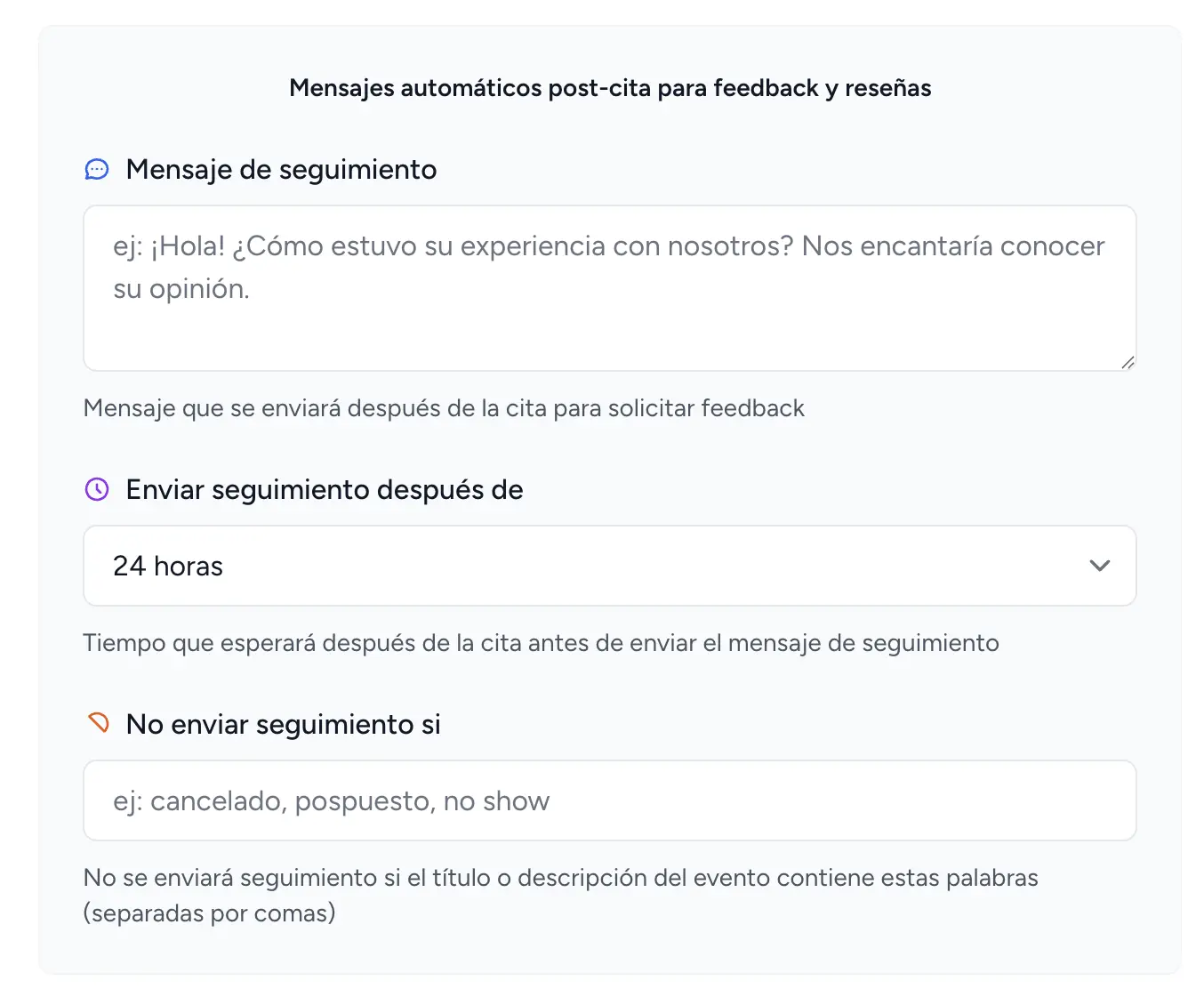
Step 2: Write your follow-up message
Follow-up message
Type the message your clients will receive in the text field. Need a starting point? Try the reminder message generator to get ready-to-use text. Here are a few examples:
Beauty salon:
Medical office:
Restaurant:
Step 3: Choose when to send it
Send follow-up after
Pick how long after the appointment the message goes out:
-
⏰
1 hour: Good for quick feedback (restaurants, cafes)
-
🕐
4 hours: Gives clients time to settle in before responding
-
📅
24 hours: The most popular choice, works well for most businesses
-
📅
48 hours: Better for medical visits or specialized treatments
Step 4: Add filters
Skip the follow-up when
You can stop follow-ups from going out for certain appointments automatically.
Enter keywords separated by commas. If any of these words appear in the event title or description, the follow-up won't be sent:
Common examples:
Any appointment matching one of these keywords will be skipped automatically.