How to connect Google Calendar to RicordamiApp
Why connect with Google Calendar?
• Automate reminders without manually entering each appointment
• Use the calendar you already know
• Automatically sync all your events
• Spend less time on admin, more time with clients
Connect your Google account
After creating your RicordamiApp account, connect your Google account to access your calendars.
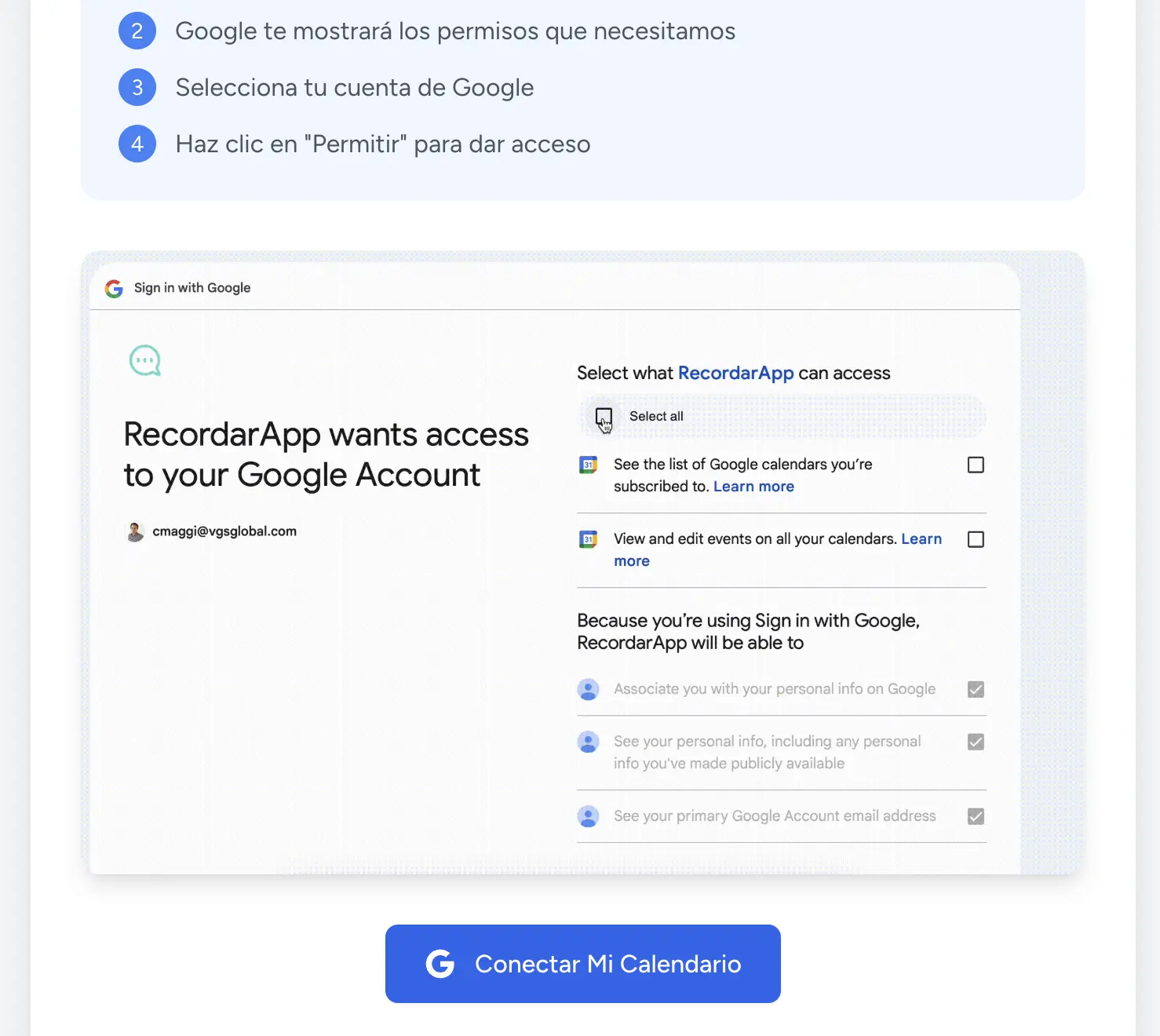
- Click the "Connect My Calendar" button
- You'll be redirected to the Google authorization page
Authorize access to your calendars
Google will show you an authorization screen where you'll need to:
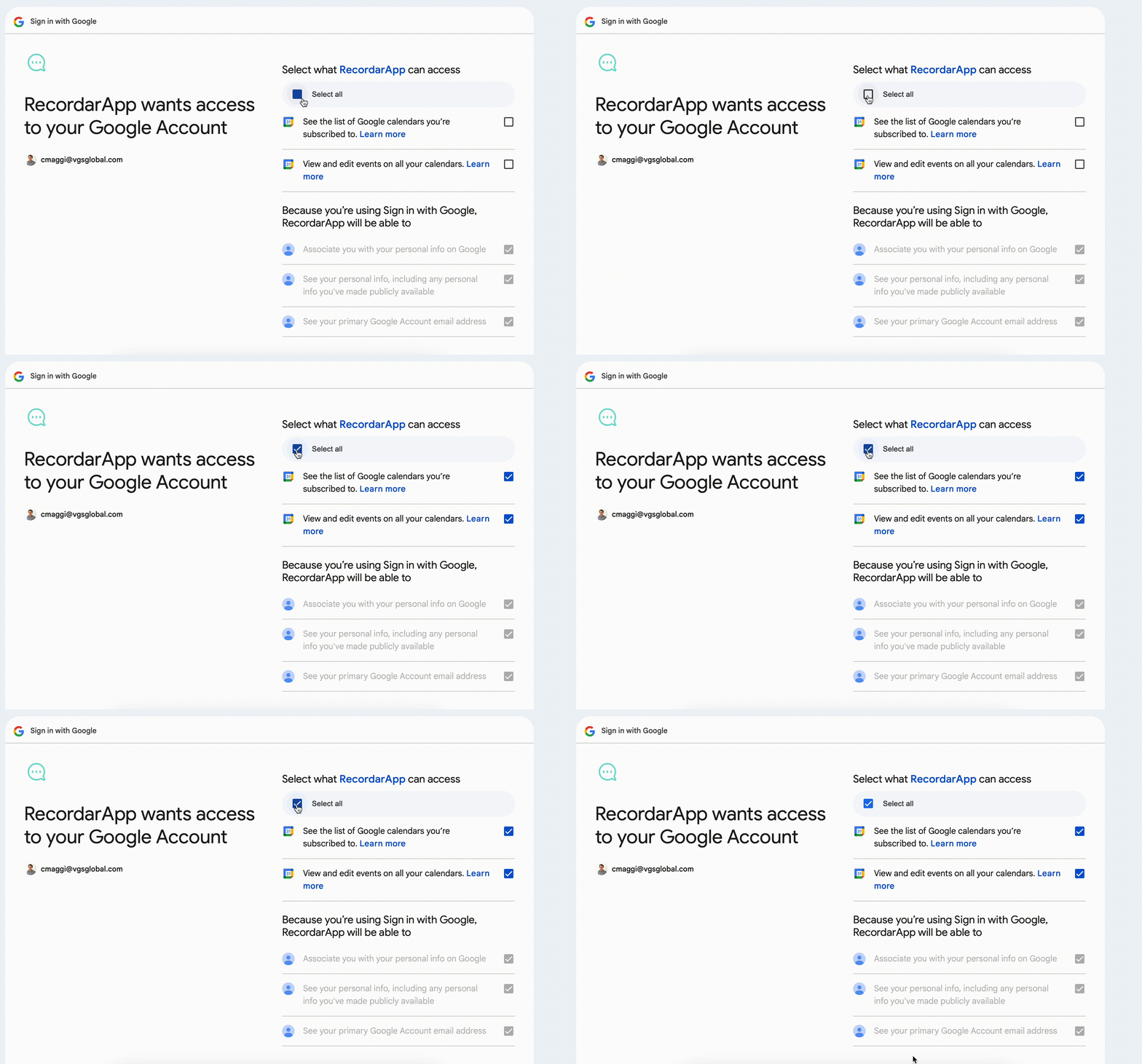
- Select your Google account from the list
- Click "Allow" to grant access
Google will specifically ask you to authorize:
- View the list of Google Calendars you're subscribed to
- View and edit events on all your calendars
RicordamiApp only reads events to send reminders. We never modify or delete anything from your calendar.
Select the calendar to use
After authorization, you'll see a screen with all your available calendars:
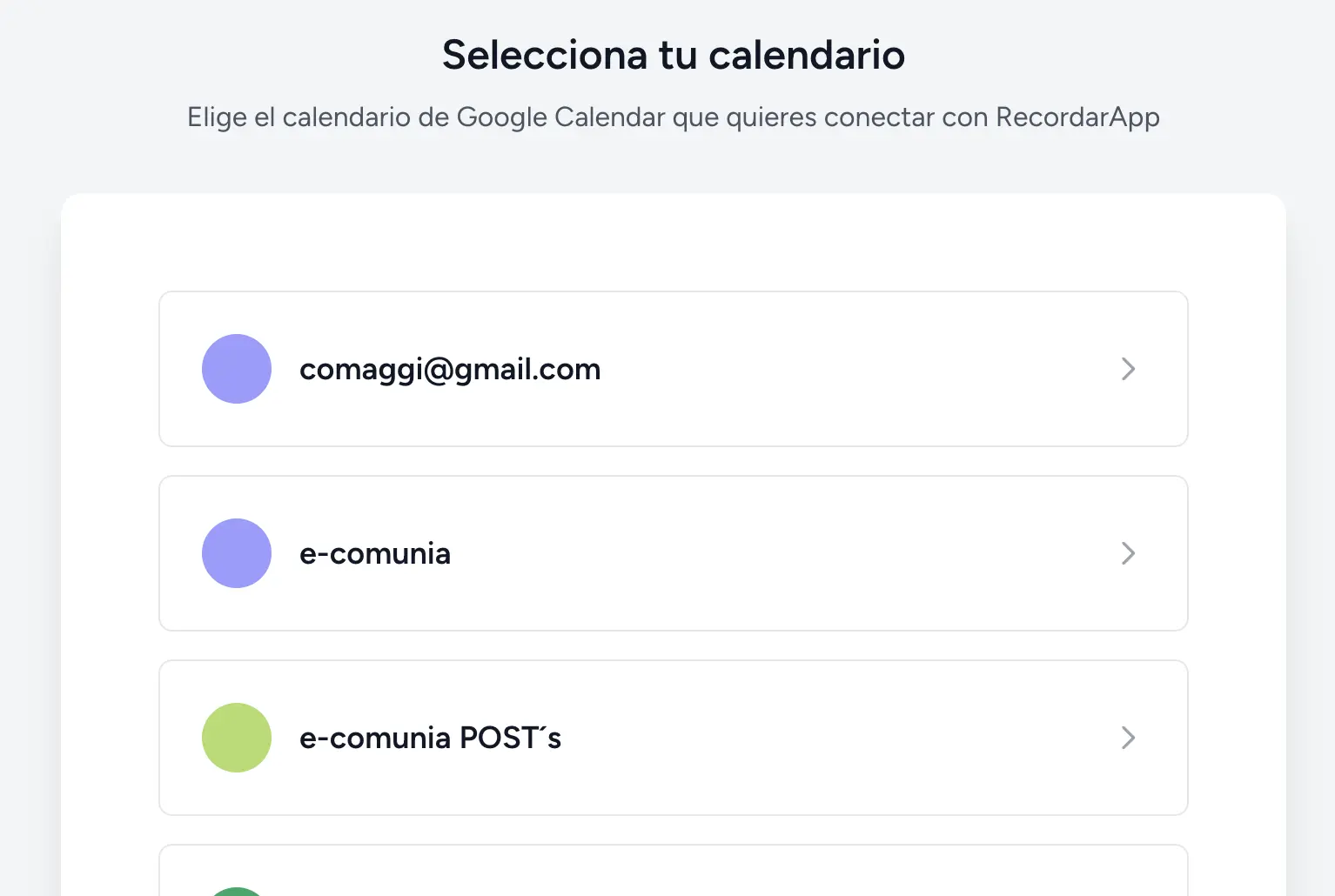
- Choose the calendar that contains your client appointments
- You can select different calendars for different types of appointments
- Click on the calendar you want to continue
Tip: If you manage different types of appointments, you can always add other calendars later from settings.
Add phone numbers to your events
Once your calendar is connected, you'll see all your appointments in the RicordamiApp calendar view. You can add phone numbers in two ways:
A Method 1: Through RicordamiApp
- Click on any event in the calendar to open its details
- Enter the client's phone number in the dedicated field
- Click "Save" to activate the automatic reminder
The number can be in any valid format: +1, 1, or the digits directly.
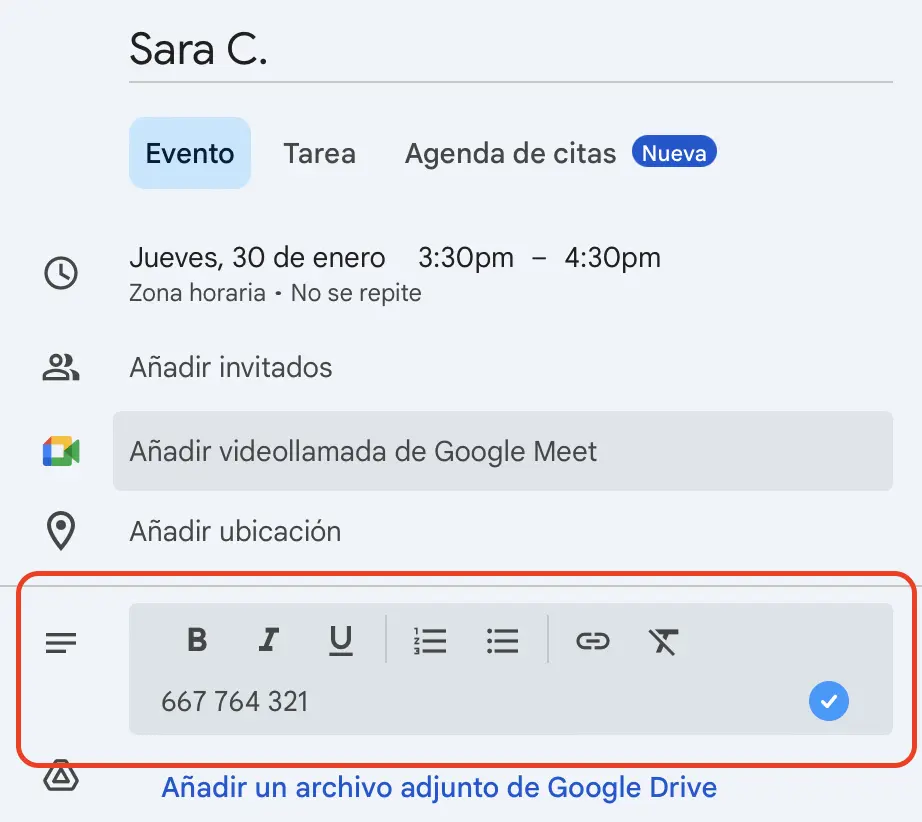
B Method 2: Directly in Google Calendar
- Open the event in Google Calendar
- In the event description, add the client's phone number
- Save the event
Description example:
Phone: +1 555 123 4567
Service: Haircut and styling
Customize the message: Along with the phone number, you can customize the reminder your client will receive. If you need help writing it, try our reminder message generator.
Frequently asked questions
Can I use multiple calendars?
Yes. You can connect and use multiple Google Calendars at once. Go to settings to add more.
What happens if I modify an event in Google Calendar?
Changes sync automatically. If you change the time or date, the reminder adjusts on its own.
Can I disable reminders for specific events?
Yes. If you don't add a phone number to the event, no reminder is sent. You can also use sending filters to control which events get reminders.
Is my data secure?
Yes. RicordamiApp only accesses the events needed for reminders and never stores sensitive client information. You can read more in our privacy policy.